What is private finance?
What is it…
Fast searchable finances cleaned up to look like you.
Better budgets
Type in the search 'celery' or 'alcohol' to see if you are exceeding budgets.
Receipts and bank transactions collect privately on your own server.
Cleaner categories and transactions linked to items makes better budget categories.
It is a cleaner look of you.
Calm Financial Interface
The private-finance user interface is designed to reduce cognitive stress. Unlike commercial banking portals that push upsells or feature popups, the application presents clear, calm financial summaries using plain terminology.
Built specifically for ordinary households who want a single, consolidated view of their financial position—checking, savings, credit cards, retirement, brokerage, and loan accounts—without surrendering control of their financial data to a third-party hosted cloud service.
And it is FAST
“Never under-estimate the need for speed.” - Eric Schmit - Ex-CEO of Google.
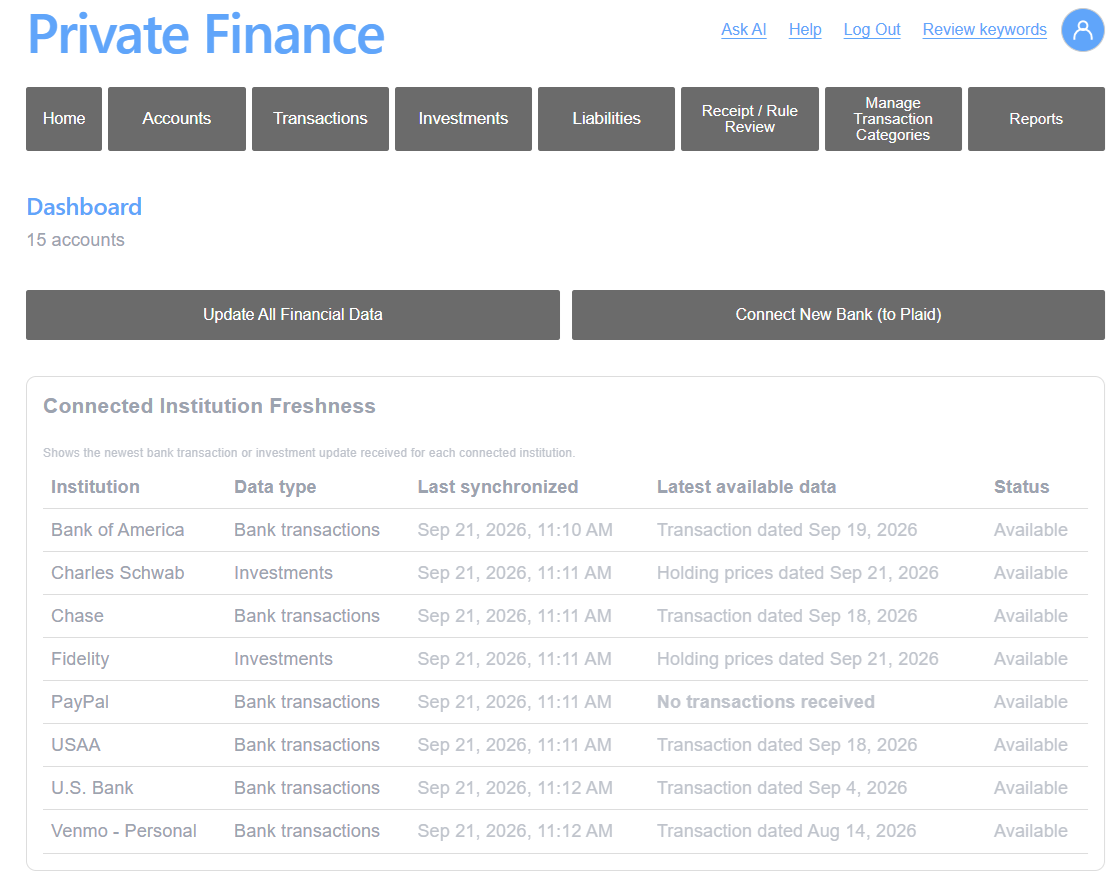
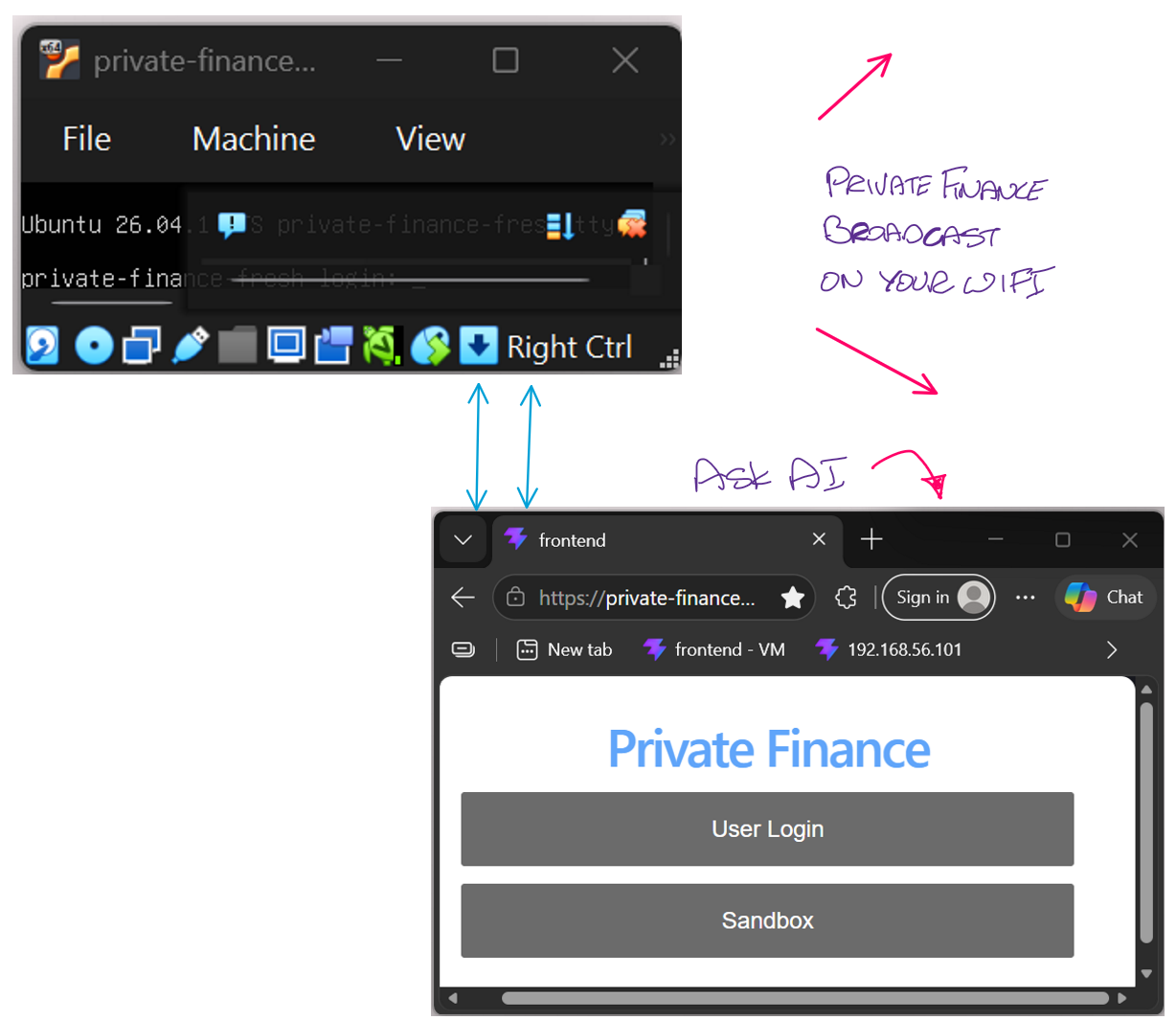
How do I start?
Getting started is easy.
(1) Install VirtualBox on PC or Mac
(2) Upload our tiny 'private-finance' Linux server to Virtual Box (instructions here)
(3) Open chrome/edge PC/Mac browser
Login to http:192.168.56.102
… and follow the onboarding steps…
This powerful linux server now lives on your desktop and all data within it is private.
Type in the search 'celery' or 'alcohol' to see if you are exceeding budgets.
Ask AI about your all of your finances in one place.
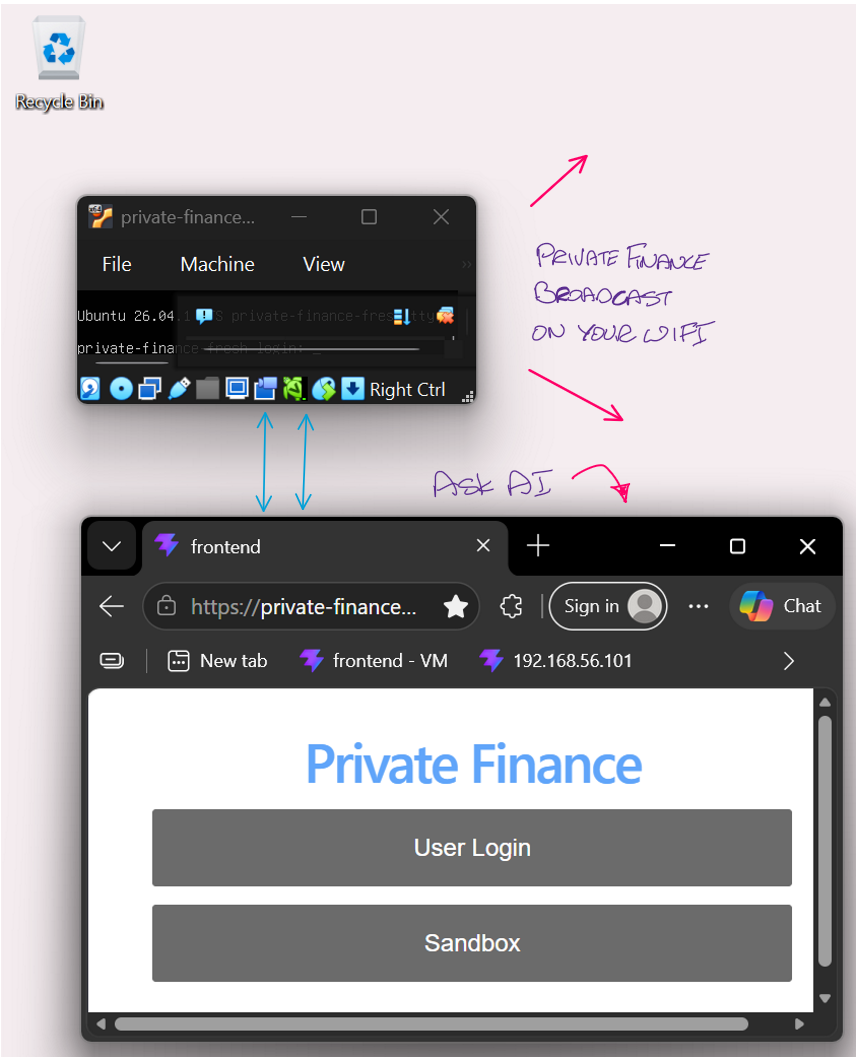
How do I make changes?
So you want to change a chart in your reports?
Making changes is easy.
(1) Install Visual Code Studio on PC or Mac
(2) Add the codex (ChatGPT) and antigravity (Google) extensions (instructions here)
'You do not need to know how to run the linux box - your AI knows how to'.
Ask AI
Make changes to any chart in private finance
To examine private finance code for security holes
Now you have tools to develop any tool from home.
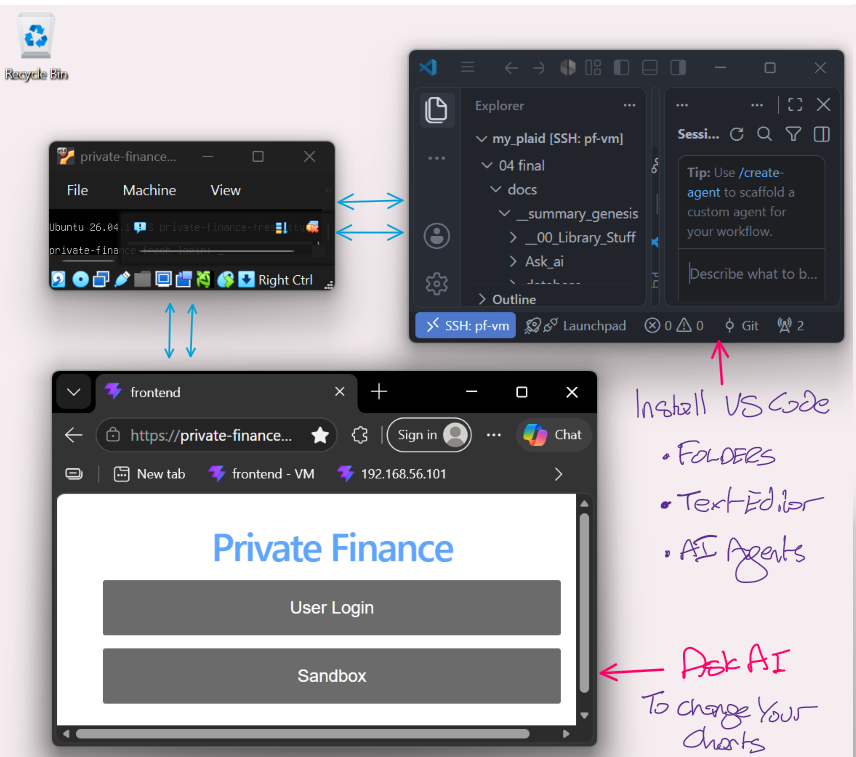
How do I use these tools
Using VS Code folders as the structure for all your AI projects is easy.
(1) Install DaVinci Resolve
(2) Put your video resources in a VS Code folder
(3) Ask your AI to create a Davinci resolve project and put all the clips into it.
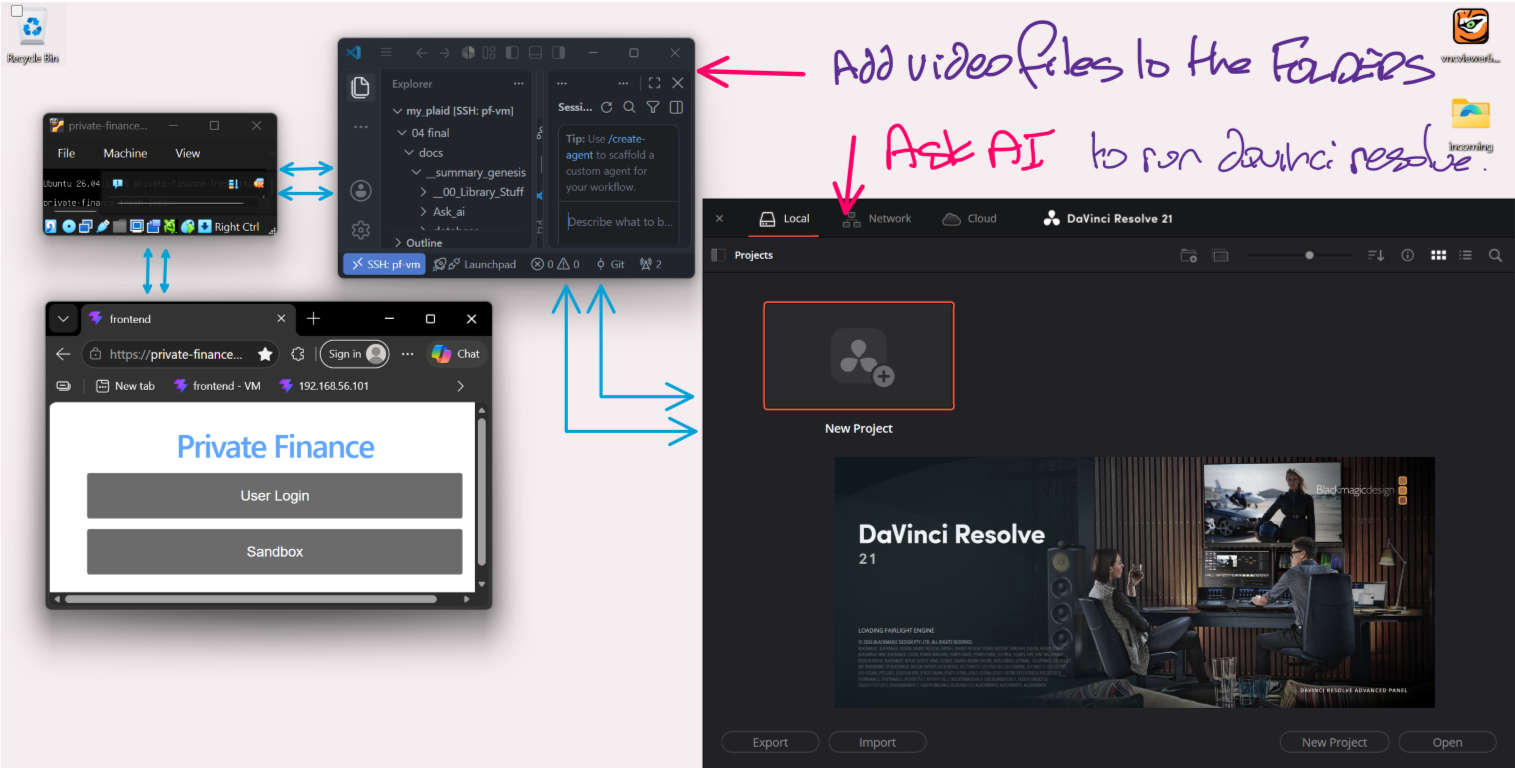
Control the tools inside DaVinci resolve by issuing commands from VS Code
And this explains why private-finance is installed the way it is.
Anyone can write software and produce videos with these tools
Jamesa.solutions
What happens when i first run
When you start the Private-Finance server in VirtualBox for the first time,
onboarding takes you through four clear stages to secure and configure your personal financial server:
When you first boot your VirtualBox virtual machine
1) First run and getting an HTTPS certificate
You need to connect and download a security certificate from the VM.
This enables encrypted communications in your own Wi-Fi even if the Internet is down.
Open this address in Chrome or Edge (e.g. http://192.168.56.102),
Forwards through 'You are not private' messages - this is what we fix.
You are greeted by the Secure First Connection screen.
(1) Click Download certificate.
(2) Open the certificate and install it into your operating system's Trusted Root Certification Authorities store (or on Windows PowerShell run: certutil -user -addstore Root "$env:USERPROFILE\Downloads\private-finance-root-ca.crt").
(3) Click Check again.
Your browser automatically redirects to the trusted local HTTPS site (https://192.168.56.102) with a green lock and zero security warnings.
WHY DID WE DO THAT?
To ensure all your financial transactions remain fully encrypted across your home Wi-Fi without relying on third-party cloud authorities, your VM issues its own local root CA certificate (private-finance-root-ca.crt). Now you are private on your own network. You have a 'mini Internet' in that Linux box.
2) Launching the Guided Setup Wizard
Immediately upon initial sign-in, the Guided Setup Wizard opens automatically
to guide you through connecting your data sources at your own pace.
You can also open Guided Setup at any time by clicking the
User Profile icon in the top header and selecting Guided setup.
The wizard tracks your completion status, saves your progress automatically,
never resets any existing data, and lets you exit or return whenever you choose.
The Guided Setup popup guides you through the following setup steps:
- Secure browser connection: Confirms your browser is connected over encrypted local HTTPS so your financial data is protected across your local network.
- Add Your information: Review and verify your account username, display name, and email address. Updates save immediately to your local server.
- Security, MFA Setup and Recovery (optional): Strengthen your account with two-factor authentication (TOTP) using any authenticator app. Download and securely store offline recovery codes in case you replace your phone.
- Connect GMail APP Password: Generate a dedicated 16-character App Password under your Google Account (Security → 2-Step Verification → App Passwords) named "Private Finance". Enter it here to allow your server to securely inspect digital receipt emails over encrypted IMAP, and choose your sync schedule (e.g. daily, hourly, or manual).
- Setup GMail email labels: Click Use suggested shopping labels to automatically build nested receipt folders in your mailbox (
private-finance/SHOPPING/for Amazon, Walmart, Target, eBay, Ralphs, Reverb, Vons-Albertsons andprivate-finance/BANKS/for Venmo and PayPal) along with Gmail incoming-mail filter rules. - Get Digital Receipts: Install the Private Finance browser extension in Chrome or Edge (using Load unpacked in developer mode). As you shop online, the extension securely captures digital itemized receipts and transfers them directly to your home server.
- Connect Plaid: Add your free Plaid developer API keys (client_id and secret) to link your checking, savings, credit cards, and investments. Plaid synchronizes daily bank balances and transactions without storing your banking credentials on the server.
- Connect OpenAI: Connect your ChatGPT / OpenAI account through a secure one-time Codex device code. Ask AI queries run against an isolated, read-only process (
finance_ai) that lets you analyze spending patterns and grocery price trends with AI while protecting your server and secrets. - Review your setup: A consolidated overview checking all connections. Green checkmarks highlight completed integrations, while optional services remain available to activate anytime under User Profile.